
Once a snipe has been placed and you no longer wish to see that item, it can be removed by following the direction below:
Single Item
- Login to your {{website}} account.
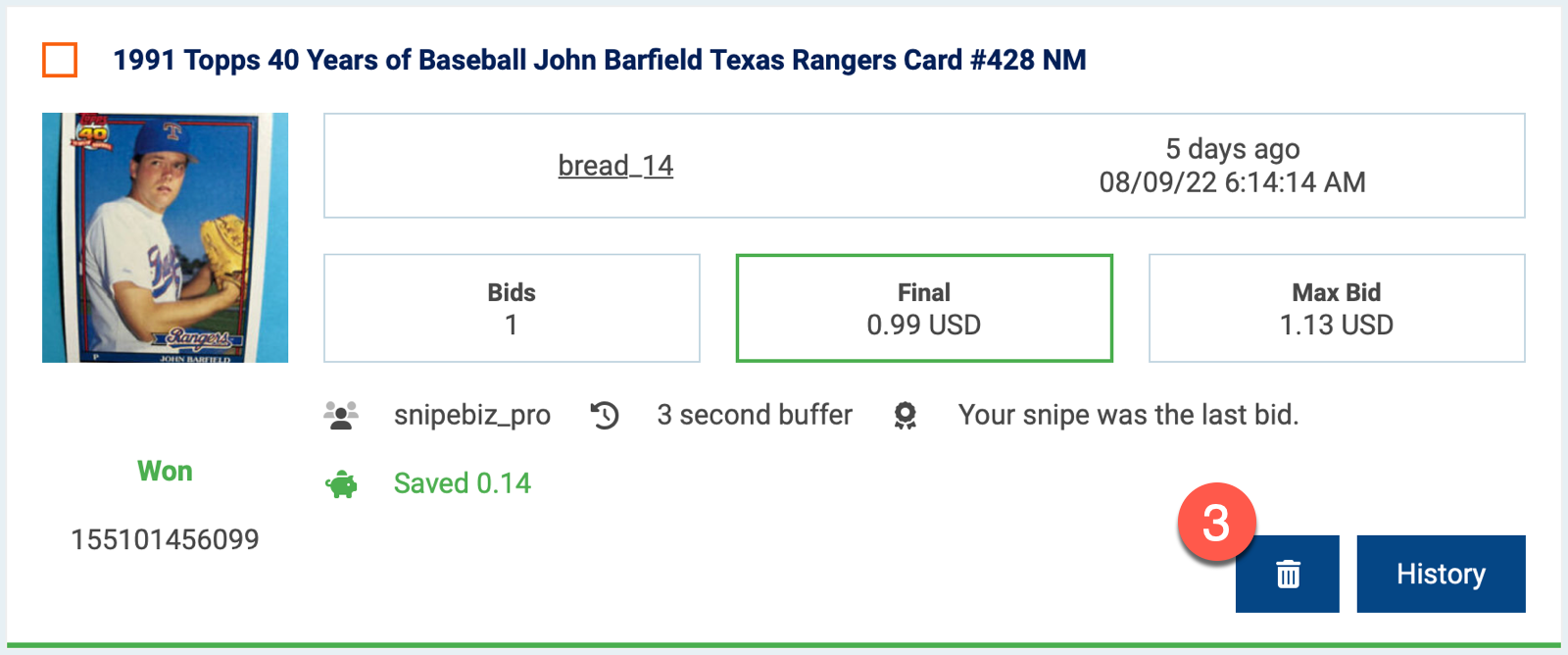
- Click on the {{icon:fas fa-hourglass-end}} Ended, {{icon:fas fa-trophy}} Won, or {{icon:fas fa-exclamation-circle}} Lost tab located at the top of any Snipes page.
- Click on the trash {{icon:fas fa-trash-alt}} icon. If you are using the Tile or Compact display setting, you will first need to show the action menu by clicking on the three dots {{icon:fas fa-ellipsis-v}} icon.
- Confirm that you want to remove that item, by clicking on the Yes button.
Multiple Items
- Login to your {{website}} account.
- Click on the {{icon:fas fa-hourglass-end}} Ended, {{icon:fas fa-trophy}} Won, or {{icon:fas fa-exclamation-circle}} Lost tab located at the top of any Snipes page.
- Check the checkbox next to each item you would like to remove.
- Click on the remove {{icon:fas fa-trash-alt}} icon at the top or bottom of the page.
- Confirm that you want to remove those items, by clicking on the Yes button.
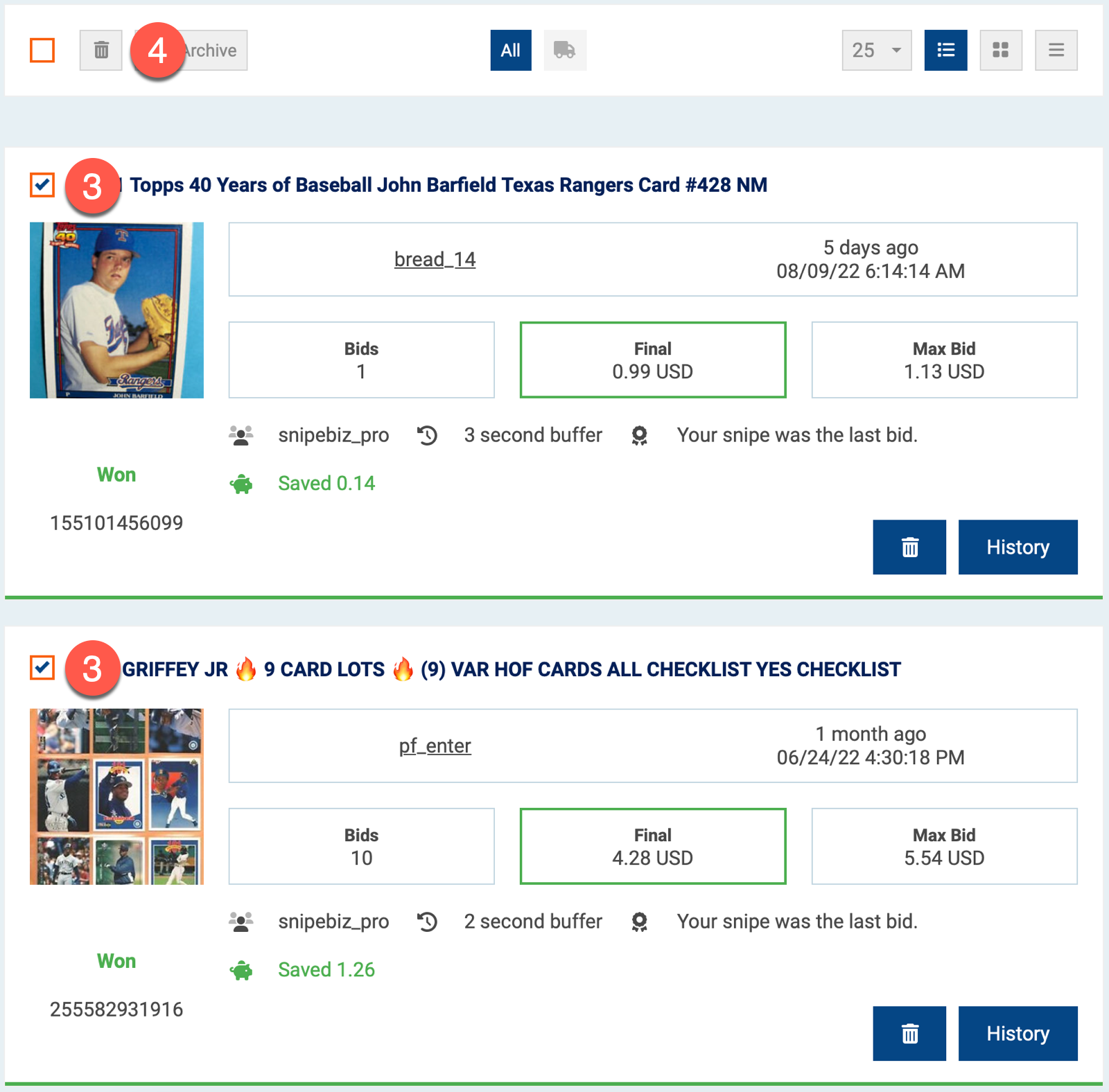
To view removed items, you can see them by clicking on the {{icon:fas fa-ballot-check}} All on the left side of the screen.
Comments
0 comments
Please sign in to leave a comment.